This reporter will output a report for each runner, so in turn you will receive an xml report for each spec file. Below
are examples of XML output given different scenarios in the spec file.
Following code shows the default wdio test runner configuration. Just add 'junit' as reporter
to the array. To get some output during the test you can run the WDIO Dot Reporter and the WDIO JUnit Reporter at the same time:
> Note: options.capabilities is your capabilities object for that runner, so specifying ${options.capabilities} in your string will return [Object object]. You must specify which properties of capabilities you want in your filename.
You can break out packages by an additional level by setting 'packageName'. For example, if you wanted to iterate over a test suite with different environment variable set:
Allows to set various combinations of error notifications inside xml.
Given a Jasmine test like expect(true).toBe(false, 'my custom message') you will get this test error:
{
matcherName: 'toBe',
message: 'Expected true to be false, \'my custom message\'.',
stack: 'Error: Expected true to be false, \'my custom message\'.\n at UserContext.it (/home/mcelotti/Workspace/WebstormProjects/forcebeatwio/test/marco/prova1.spec.js:3:22)',
passed: false,
expected: [ false, 'my custom message' ],
actual: true
}
Therefore you can choose which key will be used where, see the example below.
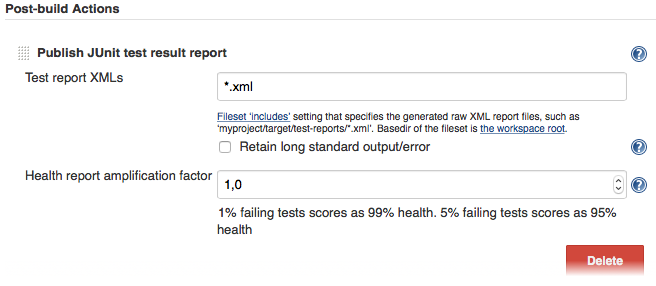
Last but not least you need to tell your CI job (e.g. Jenkins) where it can find the xml file. To do that, add a post-build action to your job that gets executed after the test has run and point Jenkins (or your desired CI system) to your XML test results:
If there is no such post-build step in your CI system there is probably a plugin for that somewhere on the internet.
For more information on WebdriverIO see the homepage.